
Secretary Bot - general Information
What is a Secretary Bot? A Secretary Bot is a bot that you can connect to your account and allow it to respond to private messages on your behalf in your absence.
This article provides general instructions for connecting the Secretary Bot to your Telegram account. Creating the logic for its behavior is described further in this section.
IMPORTANT: for the Secretary Bot to work, you DON'T NEED Telegram-Premium functionality on your account.
❖ Sequence of adding a Secretary Bot to your Telegram account
1. Create a bot in @BotFather
You can use an existing bot and simply activate «Secretary Mode» for it, but for beginners, we recommend creating a separate one to avoid confusion about the functionality.
The process of creating a new bot is described in the guide «How to create your first bot».
IMPORTANT: for OLD BOTS (previously used in the constructor), it maybe necessary to restart them in the head bot @MenuBuilderBot. Otherwise, the bot may not work in a Secretary Mode.
2. Enable Secretary mode
To enable Secretary mode:
1. Go to @BotFather and launch the Bot Management Web App (blue button in the lower left corner).
2. Select the bot you created from the list.
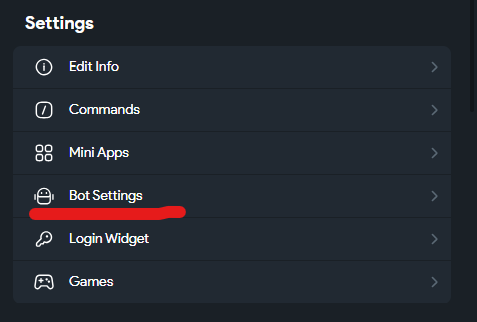
3. In the «Setting» section, select «Bot Settings»
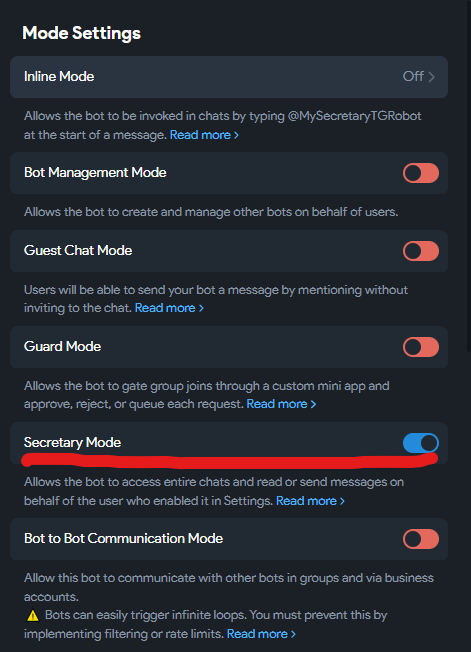
4. In the «Mode Settings» section, enable «Secretary Mode».
3. Add the Secretary bot to your Telegram account profile
INFO: Previously, these bots were called «Business Bots» and were configured only through the Business Bots menu as part of the paid Telegram-Premium functionality. Telegram has now made this option FREE for everyone and placed it in the PROFILE SETTINGS of your Telegram Account. Therefore, you DO NOT need to look for it in the Business Bots section!
You can also configure the Secretary Bot through the Business Bots section (if you have a Telegram-Premium account and need additional Business Bot options) - but in this guide, we'll be looking at the FREE connection option.
IMPORTANT: Below are instructions for connecting the «Secretary Bot» to your Telegram account using the TELEGRAM-DESKTOP app as an example. The steps are similar for the official mobile apps. If you're using a custom client (fork) and don't see these menus, temporarily switch to the official settings app.
To add the bot you've created as an Secretary-autoresponder to your account:
1. Go to «My Profile» section in the left menu and click the «Pencil» icon to edit your profile.
2. Find the «Chat Automation» section.
3. In the first segment, select the bot you've created.
4. The following settings will be specific to each of you, depending on your scenarios:
- Select where the bot will have access to (Chats the bot can access) - all personal chats or only selected ones. Normally, only selected ones («Only selected chats»).
- Select the chat categories (or individual chats) in which your bot will work («Included chats») - usually «New Chats» and «Non-Contacts».
- Set bot's permissions («Bot permissions»): at the moment, it is enough to just specify all the items in the «Manage Messages» option (the required minimum).
After this, you can exit the Profile settings.
4. Add the bot to the MenuBuilderBot bot constructor
If you didn't do this in the first step, you can do it now.
Brief instructions on adding a bot to the constructor are in the manual: «Create a New Bot».
5. Add behavior logic
The logic and rules of behavior of the Secretary Bot (like any other bot created using the @MenuBuilderBot constructor ) are defined within the bot you created.
For a detailed description of how to create a Secretary Bot, see the guide: «Creating a Secretary Bot».
❖ Two approaches to the work of a secretary bot
There are two fundamentally different approaches to how your Secretary Bot will interact with the user.
APPROACH 1. The bot will ignore all user messages, the reaction to which is not directly included in its logic.
In other words, the bot will remain silent on an unknown user message. The bot will respond with a corresponding message if the user sends a command or button name known to the bot. In these bot messages, you can place additional commands to the user that, if necessary, will help him follow the specified scenario.
APPROACH 2. The second approach assumes that the bot will guide the user according to the logic known to it, responding with a default message to ANY unknown message from the user - transferring him to the beginning of the specified scenario if the user sends an unknown command.
At the same time, in the messages themselves, you can also place commands that will allow the user to move further along the script and return him to the beginning if the user deviates from that script by sending unknown message or command.
Frequently Asked Questions
QUESTION: Is it possible to connect ChatGPT or Assistant based on neural network?
ANSWER: Currently, no. We added Secretary Bots (formerly Business Bots) at the end of 2024, and so far, we haven't encountered any users who are seriously interested in them - mostly, everyone is just asking, but they don't have their own LLMs or Agents. If there's real demand, we'll consider this option (it's technically feasible).