
Autopayments - 2328-io [Free of Charge]
Guide for self-assist activation of auto payments in 2328-io.
2328-IO - allows your bot to automatically accept payments and credit their amounts to the balances of users in the bot, generating, for each user, individual wallet addresses to make a payment or Invoice generation.
● Payment system address: https://my.2328.io
AUTO PAYMENTS (accepting payments)
● Identification 1: Personal Crypto Wallet Address.
● Identification 2: Issued Invoice (link).
● Currencies: BTC, ETH, BNB, USDT, USDC, TON, TRX, LTC, DASH, AVAX, POL.
📆 Payment: FREE OF CHARGE.
🔧 Setting up activation:🔐Admin | 💸AutopaymentsAUTO WITHDRAWAL (payouts)
● Auto withdrawal: Available (paid separately✱)
● Payouts are made to external wallets (the user does not need to have an account with2328-io).
📆 Paid monthly (the current cost see while paying).
📞 Connection request: via the bot @MegaHubSupportBot section: «🤑 Manage «Auto Withdrawals» in Your Bot».✱At the moment, connecting and paying for Automatic Withdrawals is carried out manually (perhaps in the future this process will be automated).
IMPORTANT: The Service is provided by a Third Party and the terms and conditions of its provision do not depend on us. In this regard, the Service is provided "as is" in a FREE OF CHARGE mode as long as we ourselves are able to access the Service on the existing terms. In the event that a Third Party's terms and conditions change, we reserve the right to change our terms and conditions.
Therefore, FOR REASONS BEYOND OUR CONTROL, the feature may be discontinued at any time, and the terms and conditions we currently use to provide it may be revised and changed with prior notice or post factum.
When we start talking about autopayments in this guide, we assume that you already have a basic knowledge of how to work with the constructor and we do not need to explain to you, for example, how buttons and messages are added to your bot's menu. If, nevertheless, you still need to be explained these basic things, then you way too early attempting to create the autopayment functionality.
Merchant Validation
The
2328-io system has mandatory domain/bot binding and pre-moderation to obtain the API Key.
When receiving an API Token, please note that the 2328-io System, according to representatives, is focused on COMPLETE LEGALITY OF PROJECTS, so for ambiguous projects the probability of refusal to receive an API Key is quite high.
WHAT IS PROHIBITED FOR SURE AND WILL NOT PASS MODERATION: substances, weapons, when a project pretends to be someone else. The payment system does not work with projects associated with USA. Anything else that is illegal and best left unmentioned here.
As the project's address, when applying, you CAN USE a LINK to your bot - it is clear that the content of the bot must correspond to some average ideas about normality, and the bot must also be designed and be at such a level of readiness that the 2328-io MODERATOR can evaluate its content and purpose.
At a minimum:
• The bot must have an ADEQUATE PICTURE (no need to put your "favorite plant" and the fillets parts of your GF there).
• The bot must have a CLEAR DESCRIPTION (so that the moderator can understand its purpose).
• The bot must have an "About" message filled in (the presence of an appropriate picture will only be a plus) - there, too, place information that will SIMPLIFY the moderator's task in understanding what he is dealing with - maybe then he will not even launch the bot itself - he will limit himself to the description.
• Make sure that the START page of your bot and the contents of the Main Menu - can also be shown to healthy people.
It is important to understand that moderator is also a person and he has neither the desire nor the goal to study your project under a microscope, so the easier it is for him to evaluate the external state of your project, the sooner a decision will be made about you passing moderation.
❖ Autopayments (accepting payments)
How to organize automatic acceptance of 2328-IO payments in your bot.
Required Functions
VARIABLES FOR STORING ADDRESSES
When working with automatic Balance top-up using the payment system, it is recommended to use variables to store addresses generated and received by users.
For each user, the payment system generates an individual wallet address for replenishing the Balance. The address of this wallet for each user can be stored in a separate Address Variable. If your user has forgotten the address of his individual wallet, you can always instantly show it in the Bot in a message or in the Address Request Button. However, these addresses may not be saved. In this case, payments will still be processed correctly, however, in order to find out their previously generated address, the user will either need to search for it in the bot's history, or make a new request and wait 2-5 minutes, since the request will again go through the payment system.
The functionality of the «🧩Extensions» section:
● if you do not use a variable balance for accruals, then you will need additional variables.
● (OPTIONAL) additional variables to store user's wallets addresses.
Add. Variables
To connect, go to your bot:☞ 🔐Admin | 🧩Extensions | 📂Variables
Autopayments setup
1. Checker settings
Using the setup wizard, enter all the requested data.
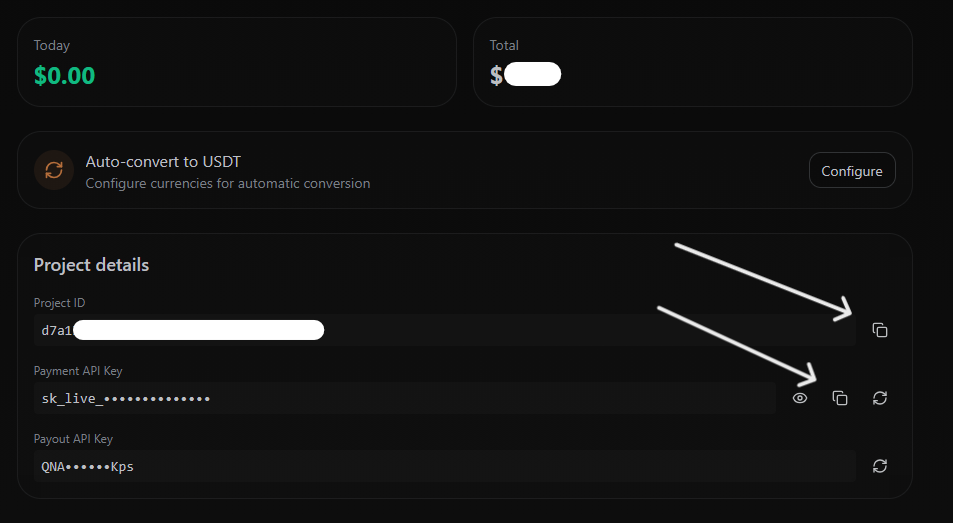
1.1 Account Identifier - PROJECT_ID
1.2 Payment Token - PAYMENT_API_KEY
IMPORTANT: There are three types of API_KEY in the system.
● The first one - «PROJECT_ID» - is needed to identify the Project (merchant).
● The second is - «PAYMENT_API_KEY» - is needed to accept payments and is configured in the Merchant's properties.
● The one is «PAYOUT_API_KEY» - it is needed for payouts and is generated in the profile settings.
At the moment, we are talking about the FIRST and the SECOND types of key.
To obtain this data, you must have created a Project:
• Go to https://my.2328.io and press:
• «Projects» (left panel)
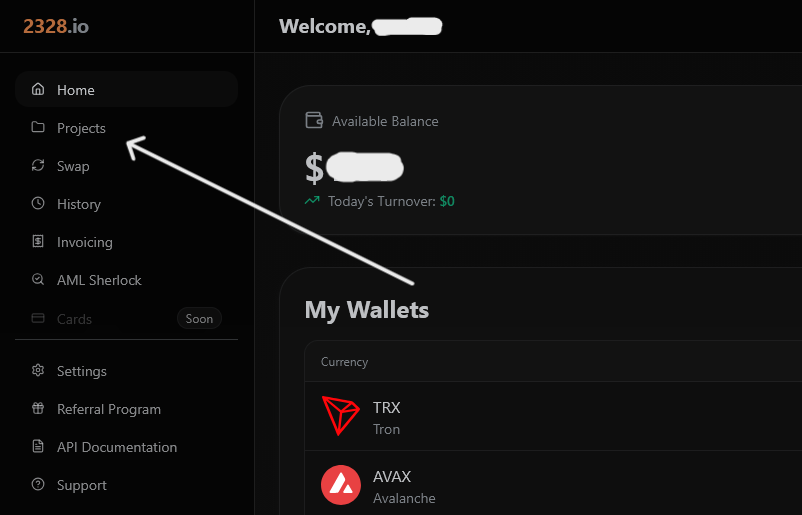
• in the drop-down menu, select «Merchants»
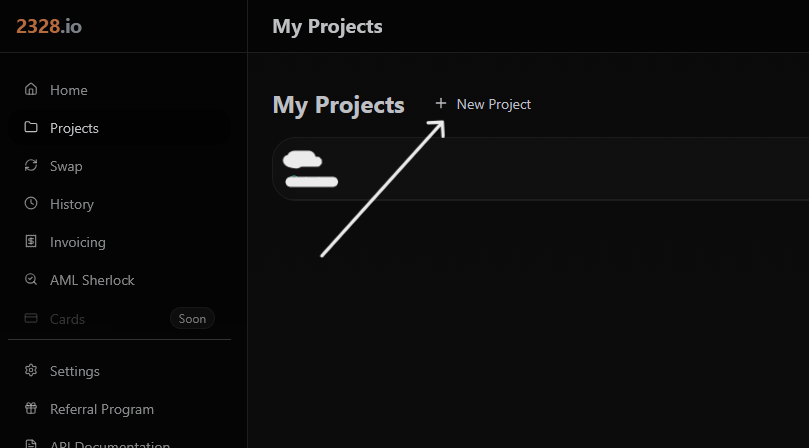
• Create new Project, by clicking «New Project»
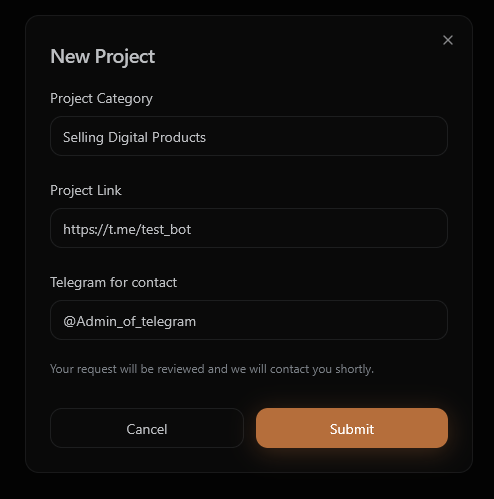
- Enter the Category (NAME) of the new Project
- Enter the LINK to your Project (Website or Bot).
- Enter your Telegram account for communication.
• Click «Submit»
• After checking the Project (an operator may contact you), your project will appear in the «Projects» section.
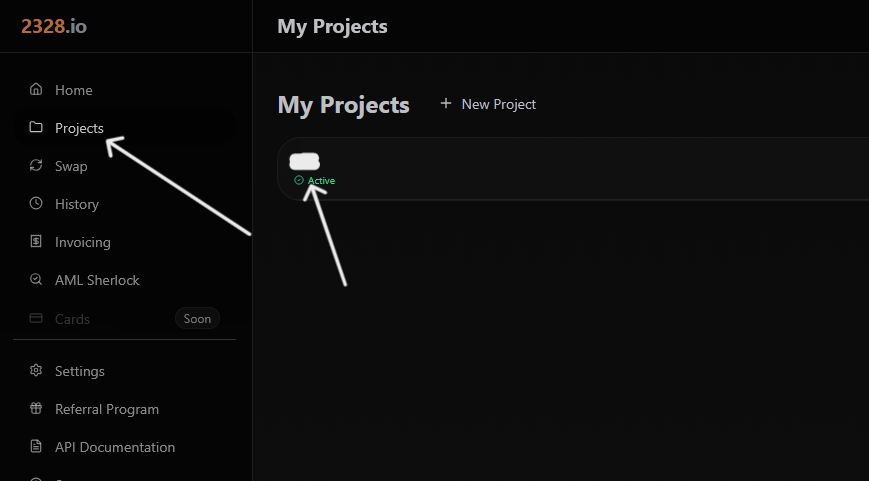
One Merchant can only be used in ONE bot. One Merchant - One Bot.
All necessary keys will be in the Project properties.
2. Extend Time
Click «Extend Time» to enable the checker and continue setting up.
Since the 2328-io payment system is provided FREE OF CHARGE, you do not need to pay for it, but you need to periodically extend the time of activation. This was done in order to exclude unused bots, abandoned by their owners from processing. If you forgot to extend your autopayment and it was disabled for this reason, simply click «Add Time» again.
3. Activate the checker (Disable checker)
When you Extending Time for the first time, the Checker will be activated automatically. It can be turned on and off as needed.
4. Balance in XXXX
It is necessary to set variables - where to accrue funds for each of the available currencies.
4.1 Specify the variable to be accrued.
For more information on specifying variables for accrual, see the TRON manual.
4.2 (OPTIONAL) Specify a variable to store the user's wallet address or click «Do Not Use» if you won't store wallet addresses in the bot.
If you decided to use variables for autopayments, here you must specify a variable to store the wallet address of the user for the network you have chosen (BTC, ETH, LTC, TRON, BSC, DASH).
Personal Crypto Address for every network, must be stored in a separate individual, TEXT variable of every user.
At the moment, in the 2328-io payment system, a SEPARATE WALLET ADDRESS is generated for each currency in any network.
4.3 Specify the accrual rate.
For more information on specifying accrual rate, see the TRON manual.
IMPORTANT: PayID for each of the currencies will be generated after the variable setting is completed and shown in the information message when entering the autopayment settings of this system.
5. Show Total
Enables and disables the display of the total amount on the wallet balance during autopayment.
For more information about showing the total amount, see the TRON manual.
Set up a report group for autopayments
During autopayments, reports with the data of a specific top-up will be sent to the group you specified.
For more information on setting up a report group, see the TRON manual.
How to organize 2328-io Autopayments in your bot's menu
How to organize auto payment through
2328-io.
Option 1: generating a static top-up wallet (Address)
If you have already enabled 2328-IO automatic payments in your bot, you need to create a way for people (your users) to automatically top-up. What is needed for this:
All you need in the bot is to create a menu with «Address» type buttons to generate individual Crypto Wallet Addresses for each NETWORK where you accept payments.
IMPORTANT NOTICE:
- At the moment, in the 2328-io payment system, a SEPARATE WALLET ADDRESS is generated for each currency in any network.
1. Create, in the bot, the number of buttons you need to generate Crypto wallet Addresses, according to the number of networks or currencies, from those that you have specified when activating autopayments and planning to accept for payment. To do this, an appropriate number of slots for such buttons will be added to your bot. Each of the currencies (networks) you specify will be assigned its own "PayID".
Usually the number of added «Address Buttons» is sufficient and corresponds to the number of currencies you accepting in your bot. If, for some reason you need more buttons, then just contact support using the special form for questions about Autopayments and ask to add the necessary amount.
2. In order to create buttons for generating Wallet Addresses, create a regular button than go to its settings and click:
• «Assign Address».
• Then follow the instructions of the Setup Wizard.
3. Create buttons for each of the currencies you specified, assigning each with the corresponding PayID issued to you.
The accrual and wallet storing variables are ALREADY associated with the corresponding PayID.
FOR REFERENCE: see how Heleket autopayment is organized in our system.
To do this, go to your bot:🔐Admin | 🧩Extensions | 🏦Your Wallets | 💳Top-up | Use Personal Crypto Address
Option 2: creating payment link (Invoice)
If you have already enabled automatic payments in your bot, you need to create a way for people (your users) to automatically top-up. What is needed for this:
All you need in the bot is to create a menu with «Invoice» buttons for the number of currencies you want to accept. Follow the link to read the complete Guide to setting up the Invoice button. Below are the main points.
IMPORTANT: Currently, the invoice functionality for 2328 is implemented in a simplified version. See below for specifics.
IMPORTANT NOTICE:
- Invoices are issued in fiat currency and paid in cryptocurrency. Currently, invoices are ALWAYS issued in USD, and the payment cryptocurrency is determined by the PayID (if the button is created for a TRX balance, then payment can only be made in TRX).
- An invoice will be considered paid if the user has paid the specified amount OR exceeded it. In both cases, you will receive a standard notification. All other invoices will either be considered unpaid or ignored by the system as invalid.
- The user's balance will be credited with the ACTUAL amount of his transfer (if the amount of transaction satisfies the invoice amount). If you need to compensate for the payment system's commission, configure this in the button itself.
Usually the number of added «Invoice Buttons» corresponds to the number of currencies available in the system at the time of adding. If some new currencies will be added over time and you want to accept them, then just contact support using the special form for questions about Autopayments and ask them to add the missing amount to you.
2. In order to create buttons for generating invoices, create a regular button and go to its settings and click:
• «Assign Invoice».
• Then follow the instructions of the Setup Wizard.
The accrual variable is ALREADY associated with the corresponding PayID.
FOR REFERENCE: see how CryptoBot autopayment is organized in our system.
To do this, go to your bot:🔐Admin | 🧩Extensions | 🏦Your Wallets | 💳Top-up
Peculiarities of 2328-io
● The system has MINIMUM AMOUNTS for payment. These are definitely present for invoices. At the time of writing, limits haven't been officially published, but they promised to fix this. They also promised to prevent generation of invoices that are below the minimum. It is known for certain that the minimum invoice amount for the Tron network is 1 TRX.
❖ Error messages
For a list of ALL error messages, see the «Autopayments and Withdrawal of funds - general information» guide.
❖ Autowithdrawals (payouts)
Withdrawals (semi-automatic)
If you have Autopayments functionality, you may need a button to withdraw funds. The button allows you to automatically debit funds from the variable you specify where the user’s Balance is stored. The actual transfer of funds to the user’s external wallet is carried out manually by the administrator. The button allows you to partially facilitate the withdrawal process by limiting yourself to solely transfers, as well as maintaining a kind of history (Log) of withdrawals in a separate group where withdrawal requests will be send.
For more information about working with the Withdraw Button, see the manual.
Withdrawal of funds (automatic with admin confirmation)
Automatic withdrawal functionality is available for the 2328-IO payment system.
IMPORTANT: Do not try to negotiate the connection of Automatic Withdrawals until you fully understand how the «Withdraw Button» works in semi-automatic mode.
If you have fully understood how the Withdraw Button works - you have at least one such button connected, configured and already working for some time, you can consider the option of activating automatic withdrawals.
Data required for the Auto-Withdrawal function to work
For the 2328-IO system:
• A separate «PAYOUT_API_KEY» token.
How to connect withdrawal of funds in automatic mode
1. Log into your 2328-IO wallet that you use for Autopayments.
2. Copy your «PAYOUT_API_KEY» token.
3. Go to the bot @MegaHubSupportBot section: «🤑 Manage «Auto Withdrawals» in Your Bot».
4. Read and agree to all Terms (done once).
5. Select the desired system to place an order to activate Automatic Withdrawals.
6. Top up the TMH wallet of your account with the specified amount (payment is done monthly, in manual mode at this time. Payment for the first month is a connection fee and is NOT refundable, even if you change your mind about using Auto Withdrawals).
7. Enter all the data necessary for connection and send a request to activate Automatic Withdrawals.
8. Wait for a response from the Admins about the activation of Automatic Withdrawals (a sign of activation may be the appearance of a PayID list for each of the currencies you specified in the «💸 Autopayments» section for the system you have chosen).
9. After activation, go to the «💸 Autopayments» section.
10. Select the section of the payment system you just activated for Automatic Withdrawals.
11. For each currency you use, in the «Balance XXX» button, indicate the MAXIMUM amount available for automatic withdrawals (payouts).
Indicating the maximum amount available for automatic withdrawals is necessary in order to minimize the possible consequences of errors in accidental or thoughtless confirmation of payouts. Auto-withdrawals are irreversible. That is why, we suggest you withdraw large amounts manually in a semi-automatic mode.
12. In the settings of the «Withdraw Button», the «Set PayID» section will appear - allowing you to associate a specific Withdraw Button with a specific currency. One button works with one currency.
13. After setting, BE SURE to test the operation of the button on a small amount.
14. A reminder about monthly payment will be sent to the @MegaHubSupportBot bot and/or to the head bot @MenuBuilderBot of the project.
IMPORTANT: If your Automatic Withdrawals functionality was disabled for non-payment, reconnection is paid separately from the monthly fee.